
Queue & History
Upload Queue
The Uploads tab shows all active and recent uploads.
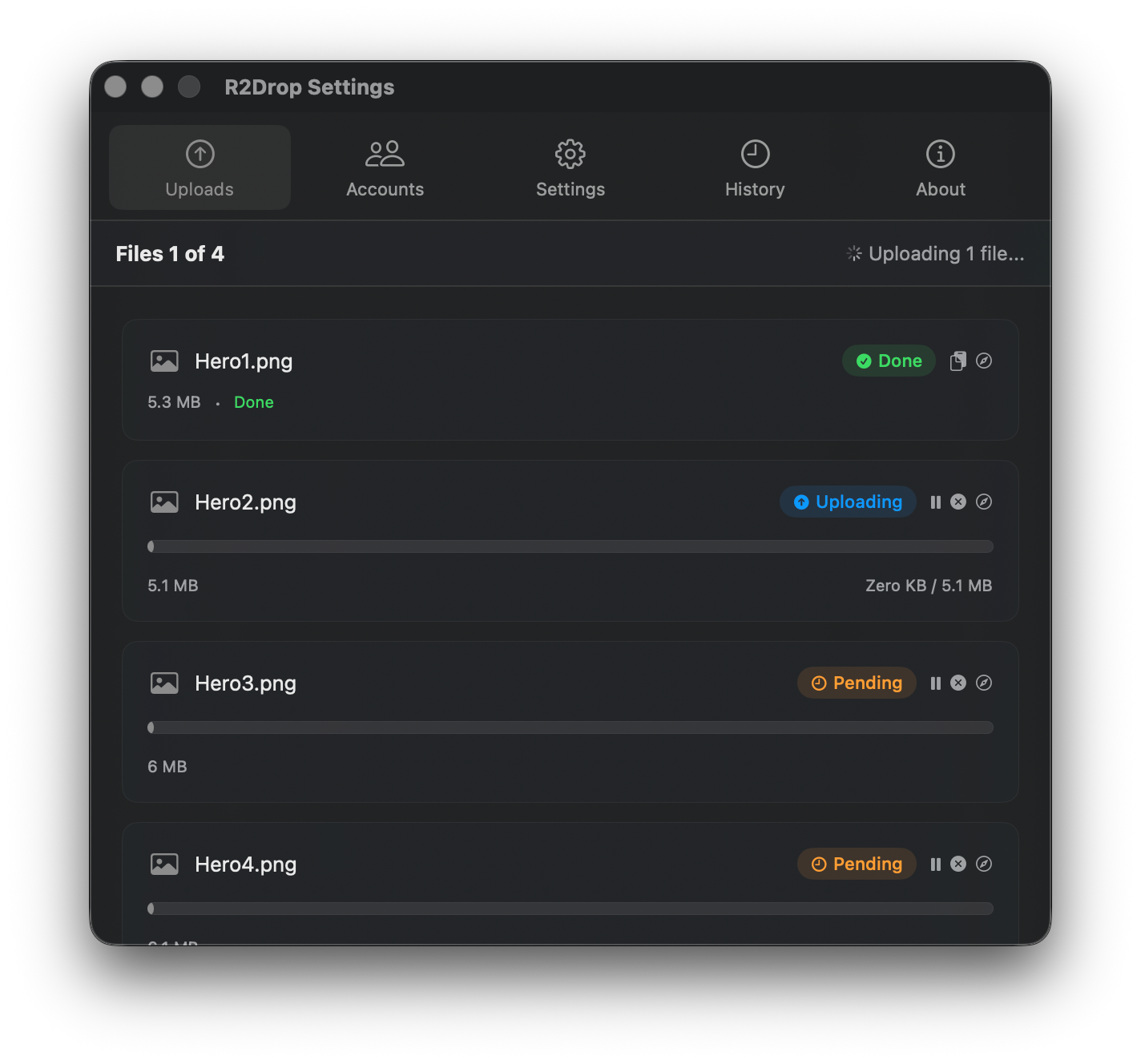
Each upload in the queue shows:
File name
File size
Upload timestamp
Status badge: Pending, Uploading, Done, Failed, or Paused
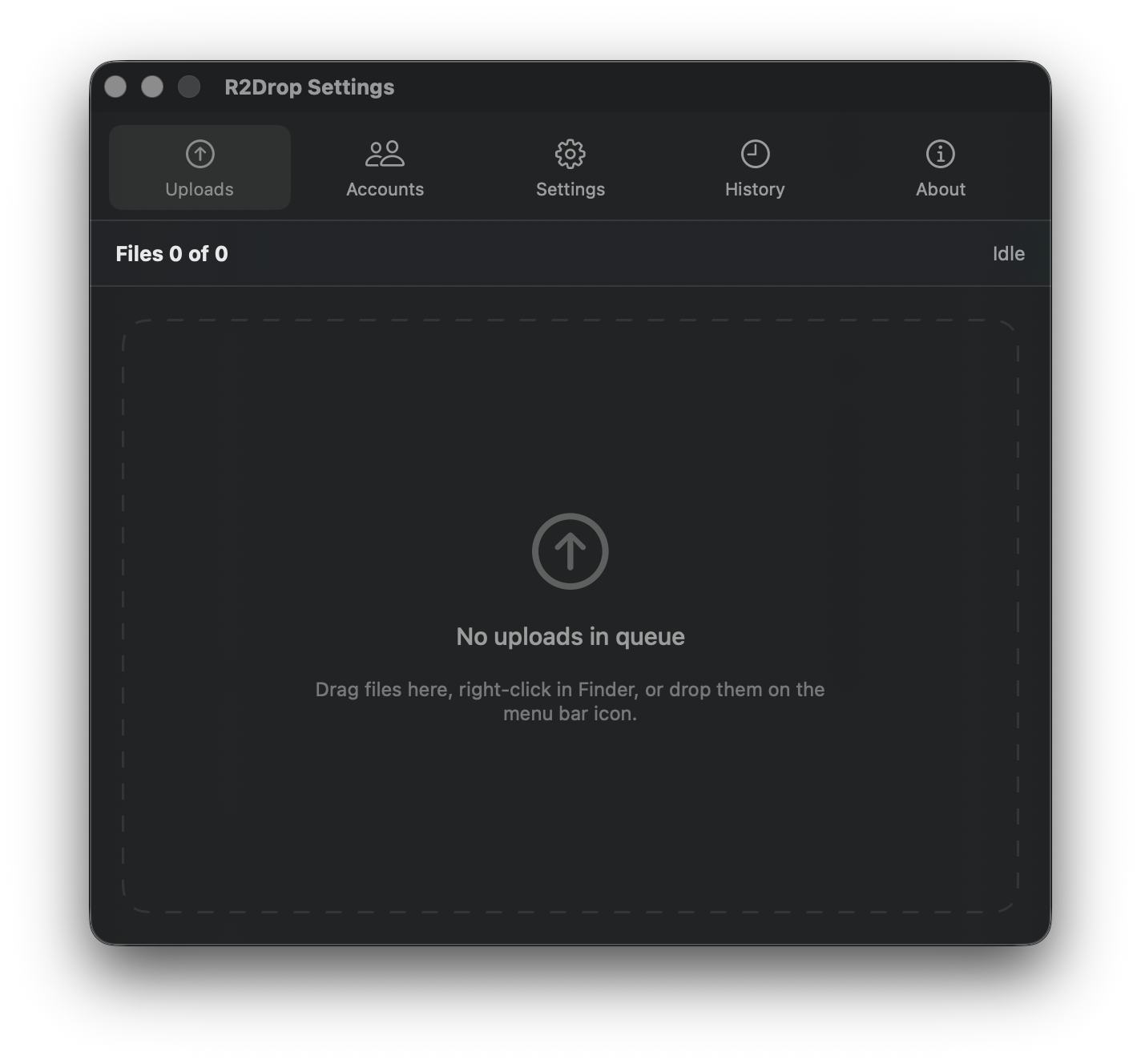
Empty State
When no uploads are in progress, the tab shows a quiet empty state.
Upload States
Pending
Queued, waiting for a free upload slot
Uploading
Actively transferring — shows progress
Done
Completed. URL is in your clipboard
Paused
Manually paused or waiting to retry
Failed
Upload failed after retries — see error for details
R2Drop uses parallel multipart uploads. Multiple files transfer simultaneously, controlled by the Concurrent Uploads setting.
Upload History
The History tab stores a searchable record of every completed upload.
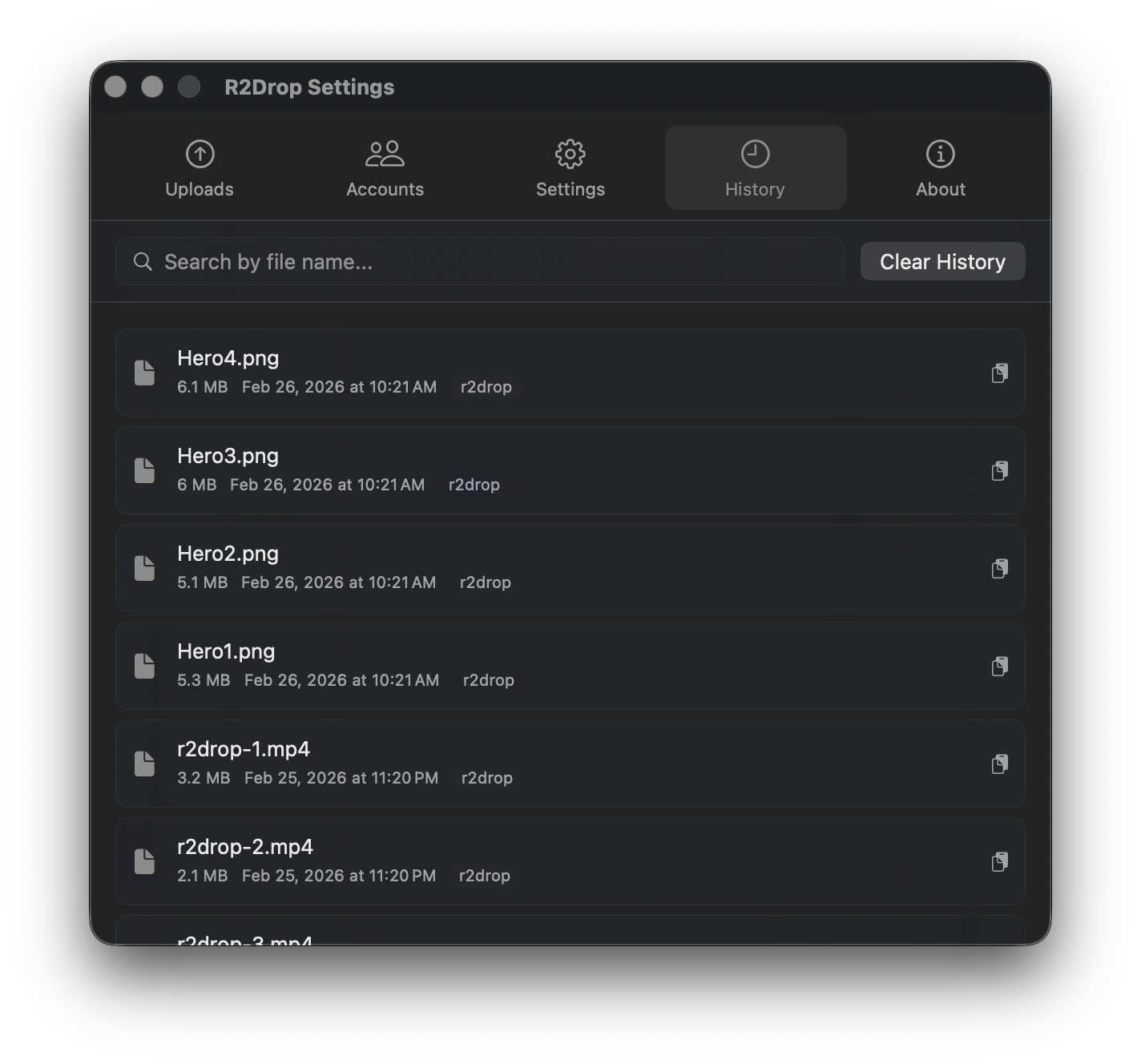
Each history entry shows:
File name
File size
Upload date and time
Account name used
Search
Use the search bar to filter by filename. Useful when you need to find the URL for a file uploaded days ago.
Copy URL
Click any history entry to copy its public URL to the clipboard.
Clear History
Click Clear History to remove all entries. This only clears the local history database — it does not delete the files from your R2 bucket.
Behind the Scenes
R2Drop stores queue and history in local SQLite databases:
~/.r2drop/queue.db— active upload queue state~/.r2drop/history.db— completed upload history
Both files exist only on your Mac. They're never synced to our servers.
You can delete them at any time by removing ~/.r2drop/ — this resets all local state without affecting your R2 bucket contents.
Last updated