Settings

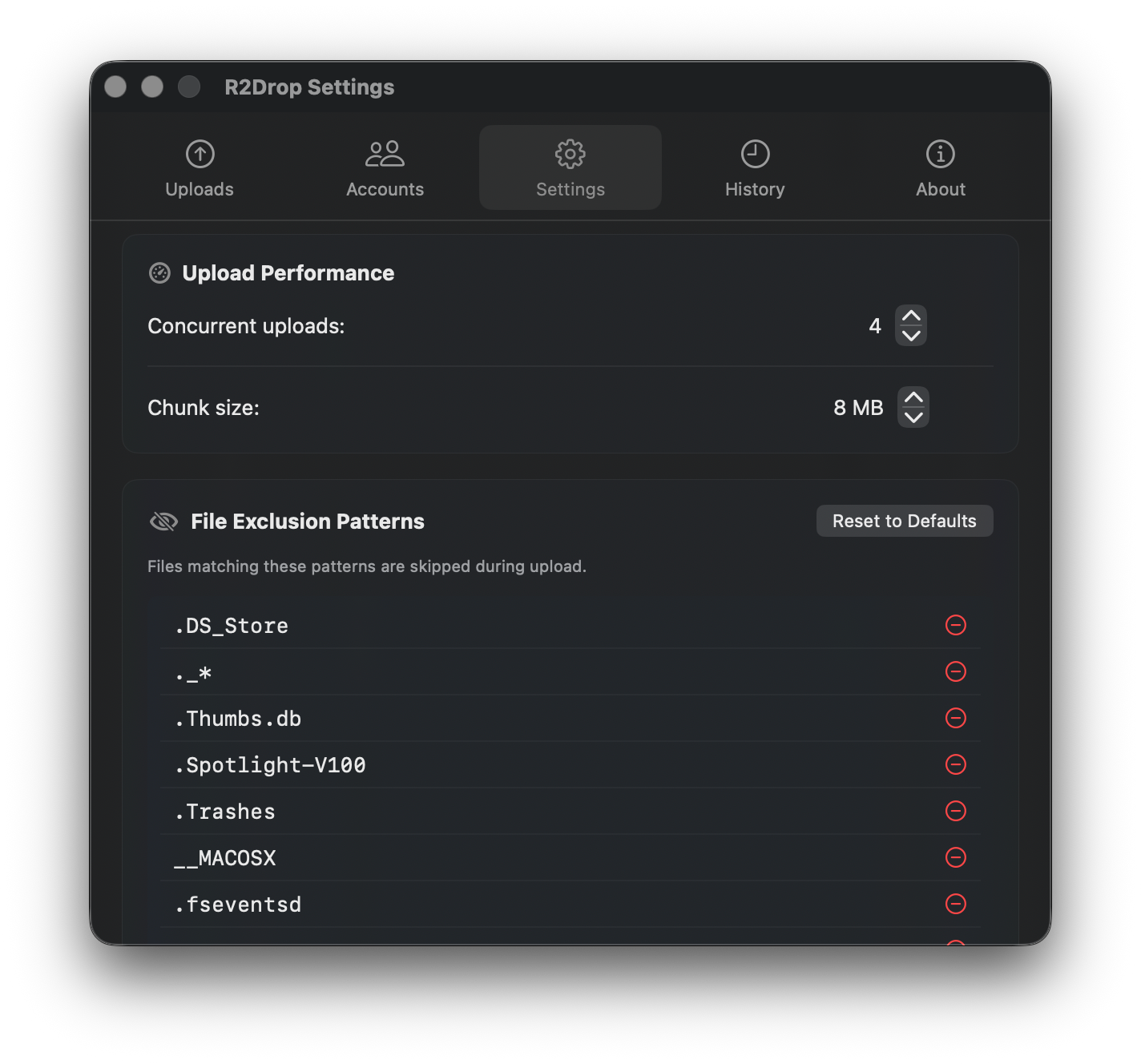
The Settings tab has three sections: Upload Performance, File Exclusion Patterns, Command Line Interface, and Configuration.

Settings tab walkthrough

Upload Performance

Settings tab showing Upload Performance with concurrent uploads and chunk size controls, plus file exclusion pattern list

Concurrent Uploads

Controls how many files upload simultaneously.

  • Default: 4

  • Range: 1–16

  • Higher values are faster for many small files, but use more bandwidth

Chunk Size (MB)

Controls the multipart upload chunk size.

  • Default: 8 MB

  • Range: 5–100 MB

  • Larger chunks are more efficient for big files but use more memory per chunk


File Exclusion Patterns

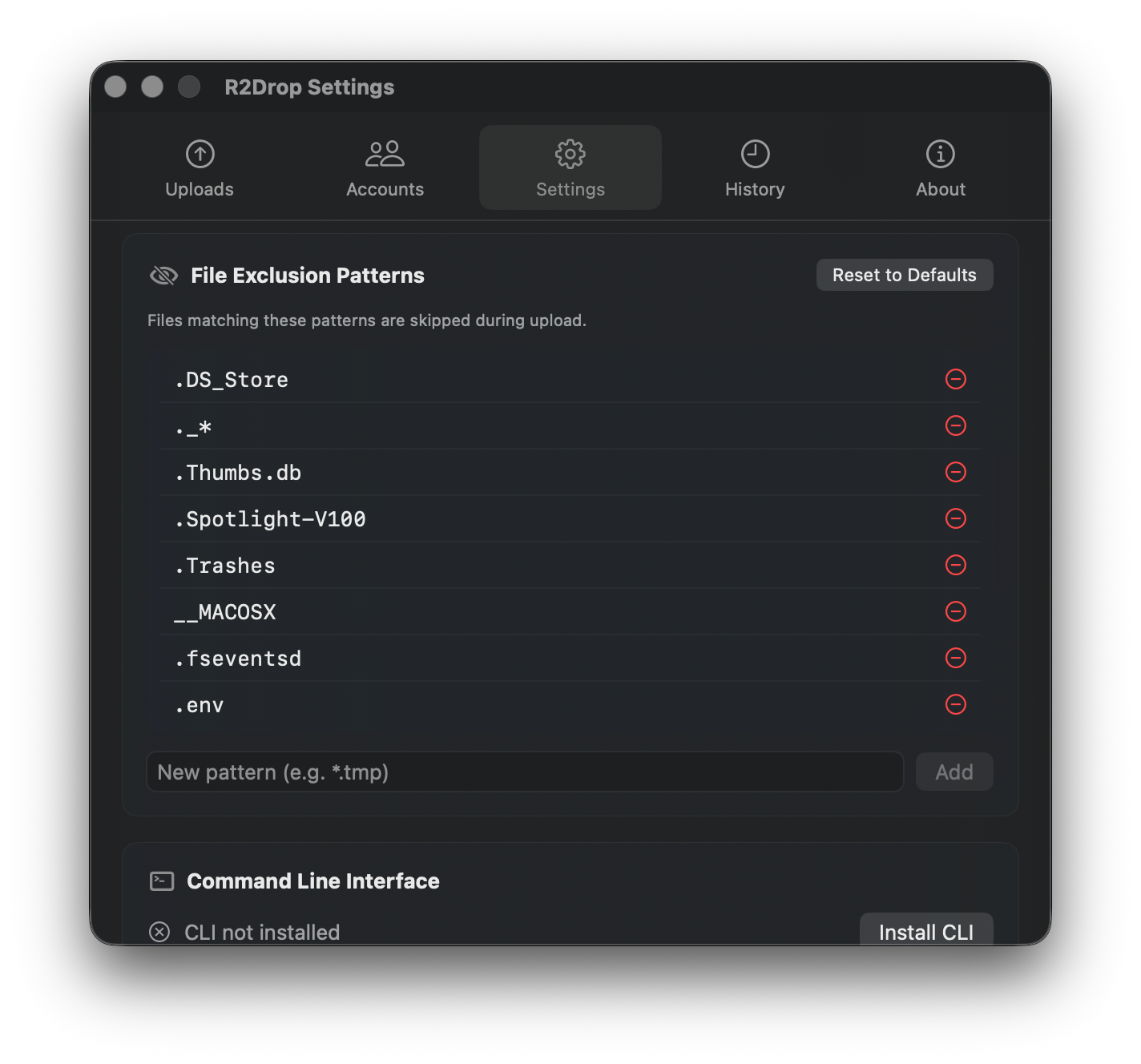
Settings tab showing file exclusion pattern list with .DS_Store, .Thumbs.db, and other common exclusions

Files matching these patterns are automatically skipped during upload. This is particularly useful when uploading folders — system files, temp files, and build artifacts are excluded automatically.

Default exclusions:

  • .DS_Store

  • ._*

  • .Thumbs.db

  • .Spotlight-V100

  • __Trashes

  • __MACOSX

  • .fseventsd

  • .env

Adding a Pattern

Type a glob pattern in the input field (e.g., *.tmp) and click Add.

Removing a Pattern

Click the red minus button next to any pattern.

Reset to Defaults

Click Reset to Defaults to restore the original exclusion list.


Command Line Interface

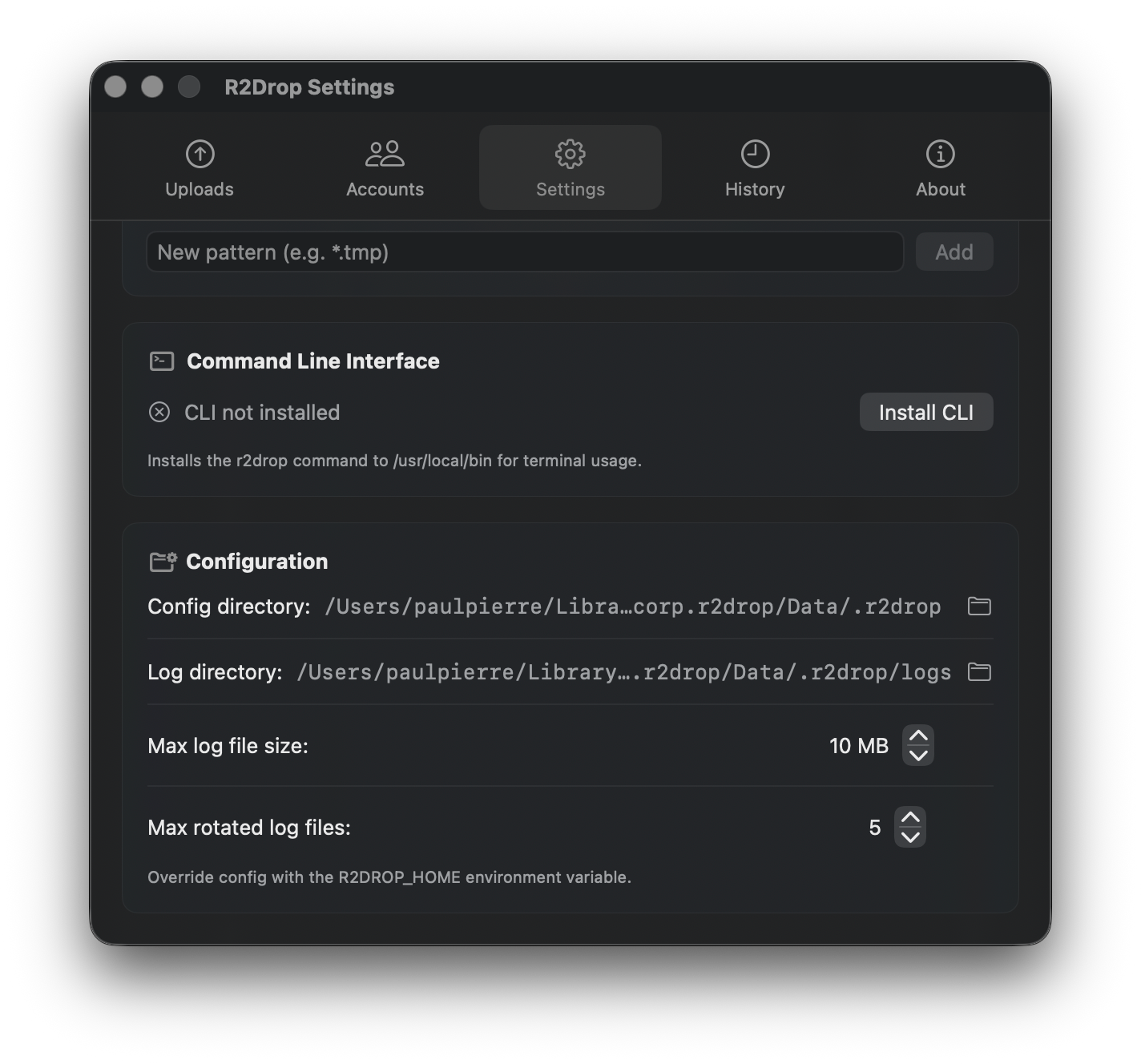
Settings tab showing CLI section with Install CLI button, and Configuration section with config/log directory paths

Install CLI

If the r2drop CLI is not installed, click Install CLI to install it to ~/.local/bin/r2drop.

The status indicator shows:

  • 🟢 CLI installed — path shown

  • CLI not installed — click to install


Configuration

Shows the paths R2Drop uses for config and logs. These can be overridden with the R2DROP_HOME environment variable.

Setting
Default

Config directory

~/.r2drop/

Log directory

~/.r2drop/logs/

Max log file size

10 MB

Max rotated log files

5

To use a custom location:


About Tab

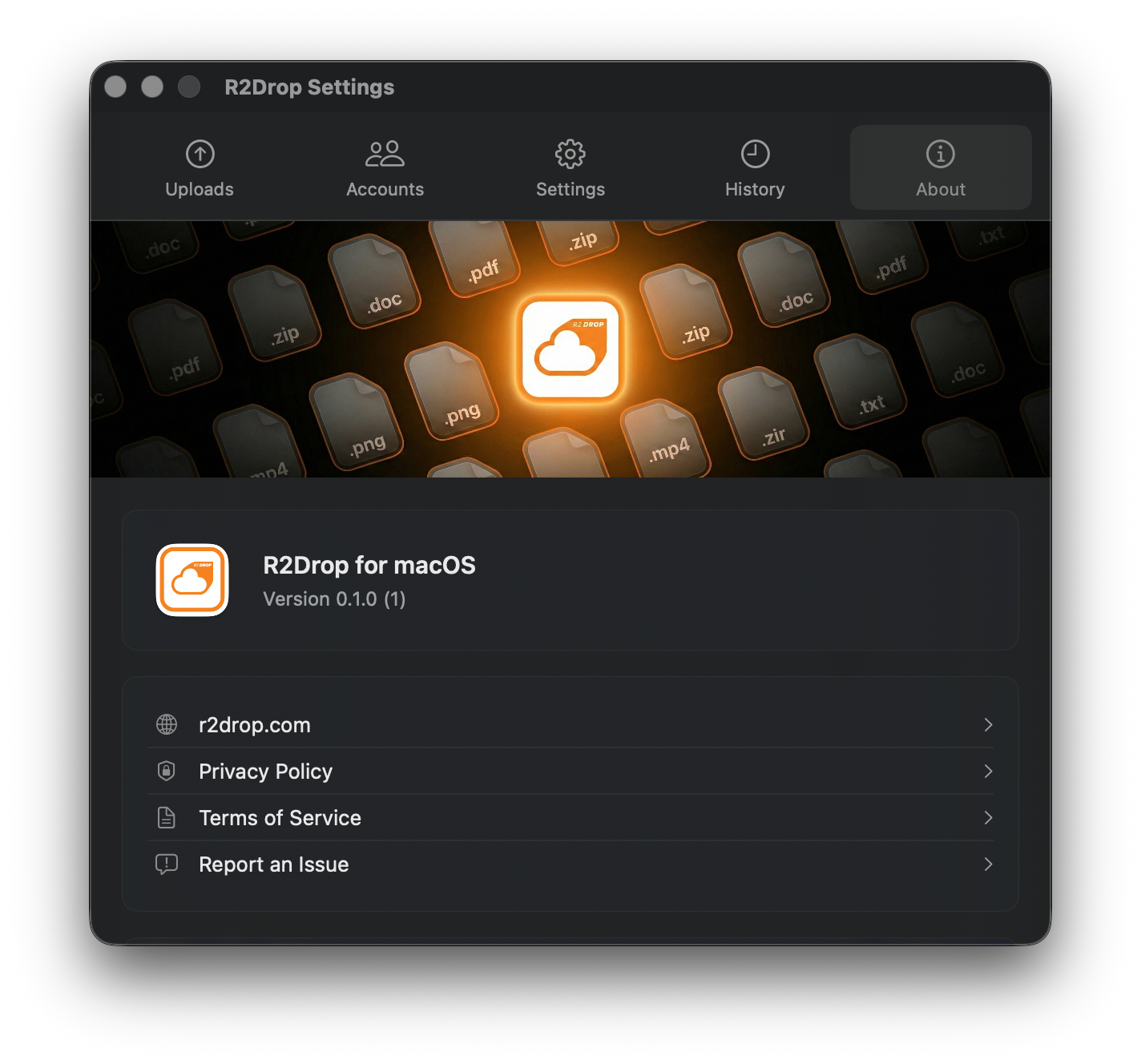
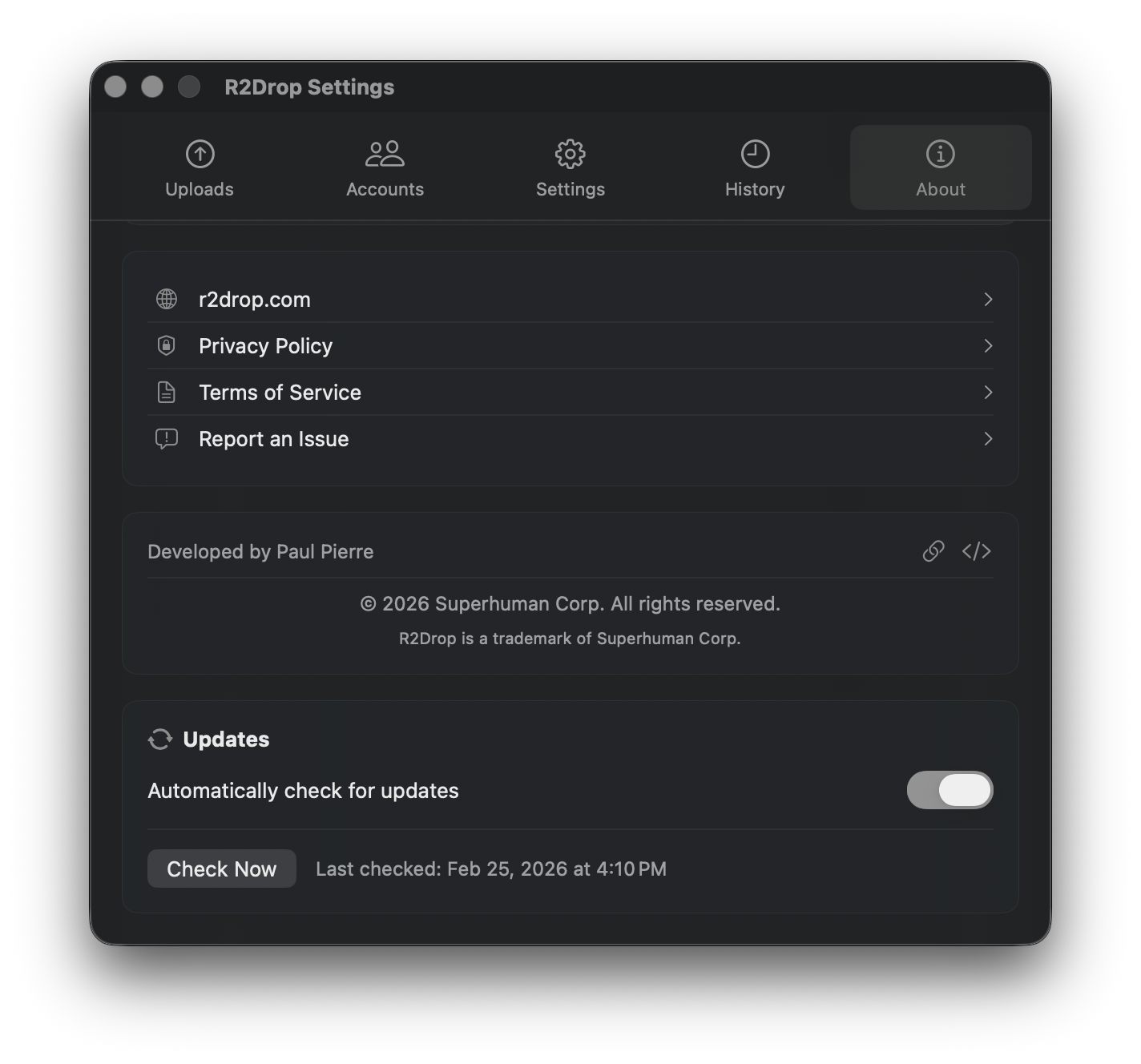
The About tab shows the app version, links to the website and legal pages, and auto-update controls.

About tab with R2Drop logo, version number, and navigation links

Auto-Updates

R2Drop uses Sparkle for automatic updates. You can:

  • Toggle Automatically check for updates on/off

  • Click Check Now to manually check for a new release

About tab scrolled to show developer info, copyright, and update controls

Last updated